Managing Home Assistant Config From GitHub
Recently I wanted to do some refactoring of my collection of automations in Home Assistant which have grown and changed in various ways over the years and needed some TLC, including modernizing the structure like triggers:, actions:, and other syntax changes, as well as consolidating and simplifying some similar triggers across multiple automations, for example creating a “Home Mode” concept. Historically I have just used the File editor app (apps are the new name for add-ons), but that doesn’t scale for larger refactors, and also doesn’t provide the safety of being able to roll back without having to fully restore from backup.
Install the Studio Code Server App
The first thing to do, and really what makes a huge difference on its own by greatly improving the editing experience, is installing the Studio Code Server app. This app lets you run Visual Studio Code directly in the browser to edit your config files.
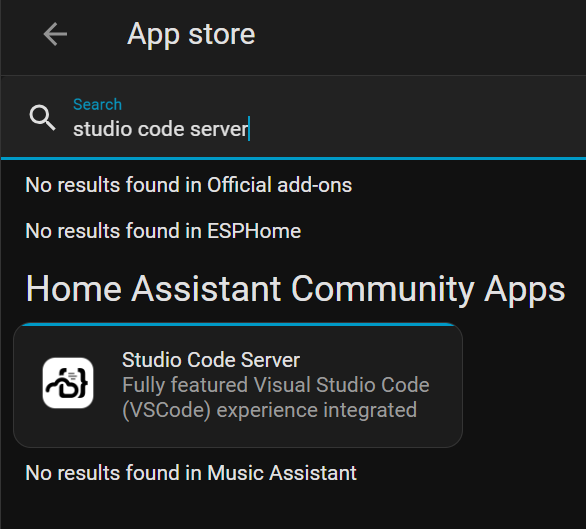
Installing the app is straightforward, just navigate to Settings -> Apps, click “Install app”, and search for “studio code server”. It should be under the Home Assistant Community Apps. No additional configuration of the app is required, just install it and start it.
The code server opens to /config which is your configuration folder, exactly the folder you want to manage.
Note: I recommend turning the app off when not using it as it can hog quite a bit of memory and is even reported to have memory leaks. Hopefully these memory issues get fixed eventually, but for right now I find it easy enough to just turn it on when I need it and off when I am finished.
Setting up Git
Now to set up the git repo you’ll use to version control your changes.
Warning: Avoid the Git pull app. I tried it and ended up having to restore from a backup. The app appears to completely replace your config directory with the git repo contents. This is not only risky, but you shouldn’t be hosting the entire config directory in git anyway (files like
secrets.yamland Home Assistant internal storage should be avoided), so I’m not entirely sure how this app is intended to be used.
First, create a new git repo on whatever hosting platform you prefer. Technically this step is optional as you can completely manage the git repo on your Home Assistant server locally, but I prefer to have additional tools at my disposal and not always work within a browser. I chose to host my configuration on GitHub.
Next, back in Studio Code Server, you need to generate an SSH key to use to authenticate to GitHub. The reason for using a deploy key instead of some other authentication mechanism such as a Personal Access Token (PAT) is to scope the credentials to this one repo, following the principle of least privilege. To generate the key, run:
ssh-keygen -t ed25519 -C "home-assistant" -f /data/.ssh/id_ed25519
Use an empty passphrase. This will create /data/.ssh/id_ed25519 and /data/.ssh/id_ed25519.pub. Note that these files are being generated to /data/.ssh/ instead of the default location of ~/.ssh/. This is because apps run in docker containers so any changes would be lost on app restart. However, the Studio Code Server app symlinks /data/.ssh/ (which is persistent) to /root/.ssh/, allowing for effective persistence of ssh keys.
Note: Unfortunately, as of writing the Studio Code Server app has a bug where
/data/.sshis mistakenly mapped to/root/.ssh/.sshinstead of the intended location. The workaround is to runcp /root/.ssh/.ssh/* /root/.ssh/every time the app restarts. I submitted a PR to fix this issue.
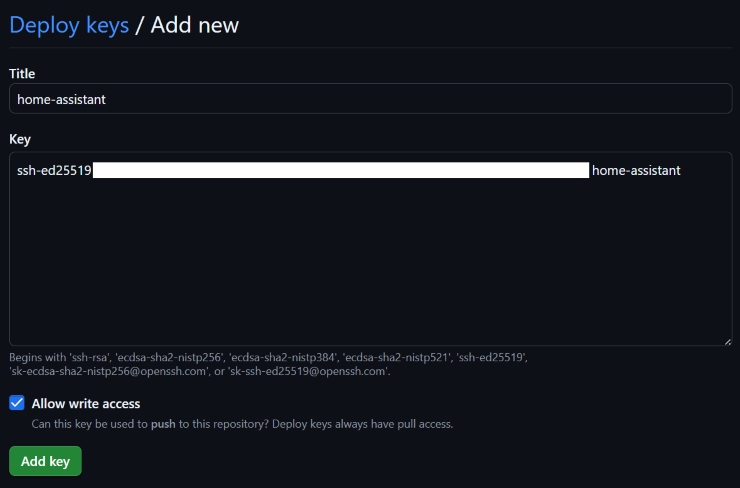
Now add the public key to GitHub. Go to your repository’s Settings -> Deploy keys, and click “Add deploy key”. Paste in the public key from running the following command:
cat /data/.ssh/id_ed25519.pub
Ensure “Allow write access” is checked if you’d like to push changes from Home Assistant to the GitHub repository.
To ensure you’ve set up authentication correct, run the following command.
ssh -T git@github.com
The first time you run it you will be asked to confirm that you want to connect. Once confirmed, you should see a message like “Hi repoName! You’ve successfully authenticated, but GitHub does not provide shell access.”
Now the local git repo needs to be set up. From /config, run:
git init
git branch -m main
git remote add origin git@github.com:yourname/yourrepo.git
git config user.name "Your Name"
git config user.email "your.email@example.com"
Replace the placeholders as appropriate. Note that the git config commands intentionally are not using --global so they persist in the repo’s .git/config rather than the container’s home directory, which isn’t persistent across container restarts.
I would not recommend committing the entirety of your config directory to GitHub, so you will want to add a .gitignore file:
# Home Assistant
.HA_VERSION
.ha_run.lock
.storage/
.cloud/
tts/

# Databases
*.db
*.db-shm
*.db-wal
pyozw.sqlite

# Logs
*.log
*.log.fault
OZW_Log.txt

# Python
__pycache__/
deps/

# Node
node_modules/

# macOS
.DS_Store
._*

# NFS
.nfs*

# Trash
.Trash-0/

# Secrets and credentials
secrets.yaml

# HACS
custom_components/
Double-check that only the files you want tracked are tracked and adjust the .gitignore as needed. Then commit and push the changes:
git add .
git commit -m "Initial commit"
git push -u origin main
From there, just commit, push, and pull as you would any other git repo.
Migrating Dashboards to yaml (optional)
If you’d like to get the same benefits of version control for your dashboards, you can migrate them to yaml as well. However, using yaml-based dashboards does impose some limitations. Notably, you can no longer edit dashboards through the UI. Because of this, migrating dashboards to yaml may not be for everyone.
If you would like to migrate your dashboards, add the following to your configuration.yaml:
lovelace:
  # Use resource_mode to load resources from YAML
  resource_mode: yaml
  dashboards:
    dashboard-overview:
      mode: yaml
      filename: dashboards/overview.yaml
      title: Overview
      icon: mdi:view-dashboard
      show_in_sidebar: true
Note that the dashboard keys must contain a - for some reason. I only have one dashboard, but if you have multiples just add more siblings to dashboard-overview. To get the yaml for individual dashboards which currently don’t use yaml, edit them in the UI and then in the “…” there should be an option for the Raw configuration editor. Copy and paste that yaml into a yaml file. I put mine under dashboards/ as per the example above.
Refer to the Home Assistant docs for a full list of configuration values.